Essential SEO Features for WordPress Themes: 12 Key Elements
The 12 SEO features to look for in a WordPress theme, which ones are really your SEO plugin's or WordPress core's job, and how to check each in minutes.

Updated 9 min read
- Author
- Published
- Updated
- Reading time
- 9 min
Theme feature lists are full of SEO promises: built-in schema, meta tag controls, breadcrumbs, analytics. Some of those matter. Some are things WordPress core or your SEO plugin already does better, and a theme that tries to do them too can cause duplicate tags.
Here are the 12 SEO features worth checking in any WordPress theme, with a plain answer for each: what good looks like, whose job it really is, and how to check it in a few minutes. If you want the step-by-step vetting process instead, use the WordPress theme SEO checklist.
The 12 features at a glance
Feature | Theme's job | Handled elsewhere | Quick check |
|---|---|---|---|
1. Schema markup | Don't conflict | SEO plugin | Rich Results Test |
2. Mobile layout | Yes | Real phone | |
3. Page speed | Yes, partly | Host, caching, plugins | PageSpeed Insights |
4. Clean HTML | Yes | View Page Source | |
5. SEO plugin support | Yes | Support forum search | |
6. Security and updates | Yes | Host, you | WordPress.org listing |
7. Title and meta tags | Support the title tag only | SEO plugin | View Page Source |
8. Heading structure | Yes, in templates | You, in content | View Page Source |
9. Image handling | Partly | WordPress core | PageSpeed Insights |
10. Navigation and breadcrumbs | Menus, breadcrumb placement | SEO plugin for breadcrumb data | Click through the demo |
11. Accessibility | Yes | Keyboard test, accessibility-ready tag | |
12. Analytics | Stay out of the way | Plugin or tag manager | Network tab |
The pattern is clear once it's laid out. A theme's real SEO work is speed, markup, mobile layout, accessibility, and maintenance. Most of the rest belongs to plugins, and the WordPress.org theme rules say so: they list SEO options and analytics as plugin territory.
1. Schema markup support
Schema markup (structured data) tells search engines and AI systems what a page is: an article, a product, a business. Google recommends JSON-LD as the easiest format to maintain, though it also supports Microdata and RDFa.
What you want from a theme is mostly restraint. Your SEO plugin (Rank Math, Yoast SEO, SEOPress) already outputs Article, Organization, and breadcrumb markup. A theme that adds its own schema on top can create two conflicting entities for the same page.
Also adjust expectations about what schema gets you. Google limited FAQ rich results to well-known government and health sites in 2023 and dropped HowTo rich results, so a theme that sells "FAQ schema" won't win you those snippets.
How to check: run a demo post through the Rich Results Test and look for duplicates. More detail is in schema markup in WordPress themes.
2. Mobile-friendly design
Google indexes the mobile version of your site, and has done for every site since it completed mobile-first indexing in October 2023. If content is missing or broken on mobile, Google effectively doesn't see it.
Every modern theme is responsive, so judge quality instead. Look for text you can read without zooming, tap targets that aren't crammed together, a menu that works with one thumb, and the same content on mobile as on desktop. Hiding sections on mobile to "clean up" the layout hides them from Google too.
How to check: open the demo on a real phone and use it for two minutes.
3. Fast page loading
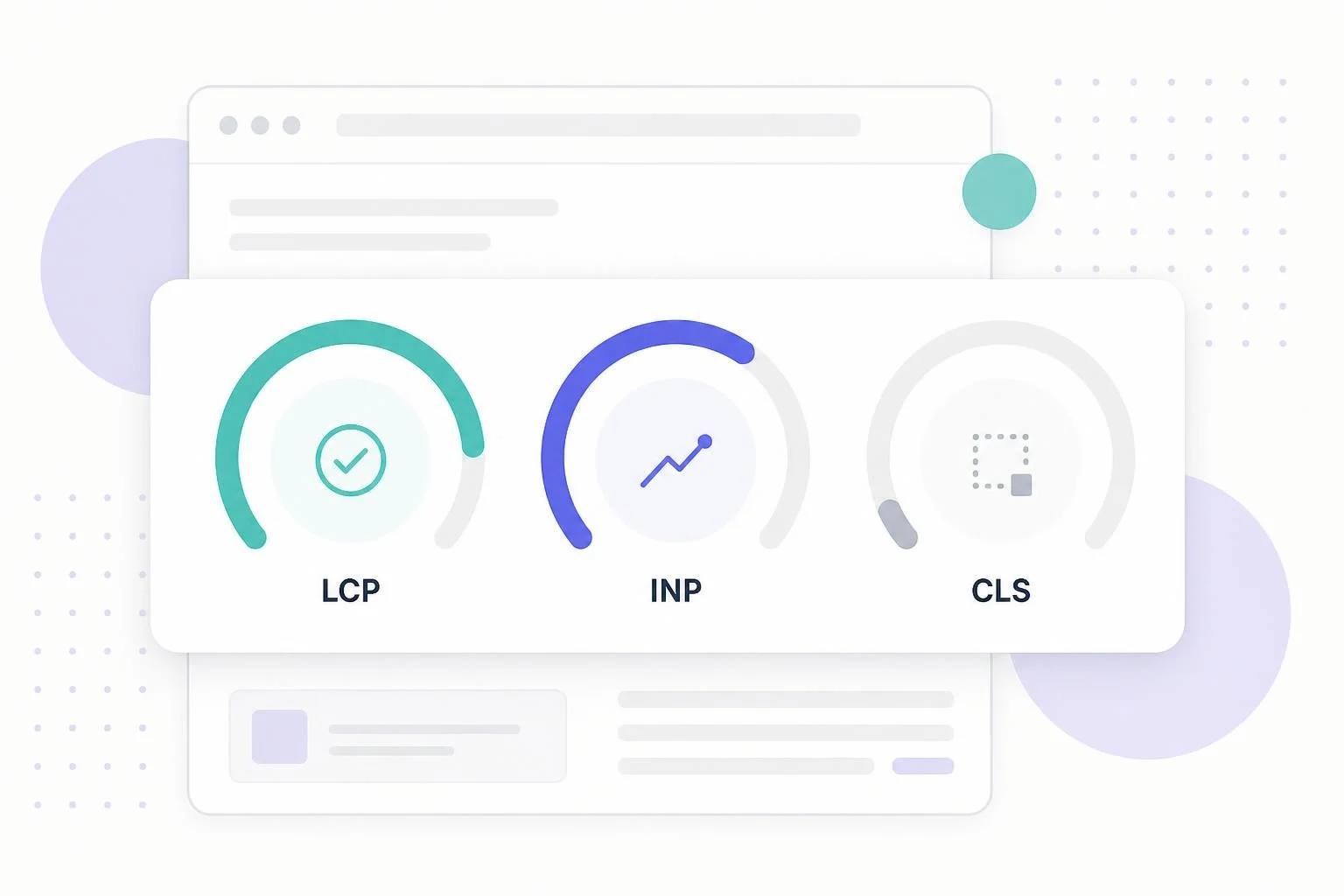
Speed reaches Google through the three Core Web Vitals: Largest Contentful Paint (good at 2.5 seconds or less), Interaction to Next Paint (200 ms or less), and Cumulative Layout Shift (0.1 or less). They're a real ranking signal but a modest one, more of a tiebreaker than a trump card.
A theme affects all three through its CSS, fonts, and JavaScript. It doesn't control your server response time or the plugins you add, which is why a fast theme on slow hosting is still slow.
How to check: run the demo through PageSpeed Insights on mobile, then repeat on a staging copy of your own site. If your live site is already failing, WordPress speed optimization shows how to find which metric is the problem.
4. Clean HTML code
Your theme writes the HTML that crawlers read. Clean output means landmark elements like header, nav, main, and article, headings used for structure rather than font size, and no large inline scripts and styles in the head.
Clean markup won't push you up the rankings on its own. It makes your content easier to parse for search engines, AI crawlers, and screen readers, and it usually means less code to download.
How to check: open a demo post, choose View Page Source, and search for <main and <article. If you only find nested div wrappers, keep looking.
5. SEO plugin support
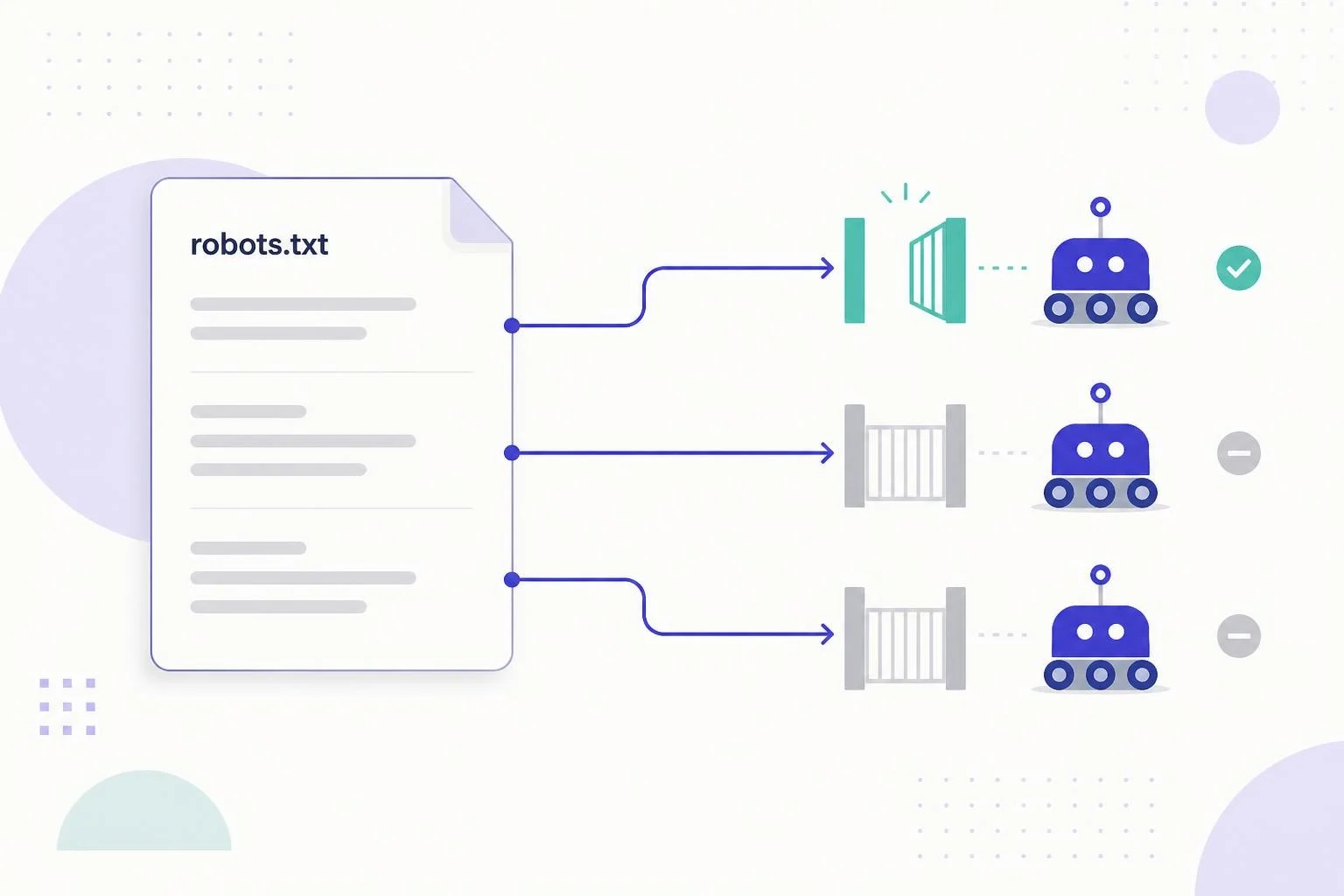
This is the feature that matters most and gets advertised least. The theme should let your SEO plugin control titles, meta descriptions, canonical URLs, robots meta tags, and schema without overriding any of them.
Conflicts show up as duplicate meta descriptions, two canonical tags, doubled schema, or breadcrumbs appearing twice. Popular themes like GeneratePress, Astra, Kadence, and Blocksy are widely used with Rank Math and Yoast, so problems there are rare and documented.
How to check: search the theme's support forum for your plugin's name, and view the source of a demo post for duplicate tags.
6. Security and regular updates
An abandoned theme can be a bigger SEO risk than a slow one. Unpatched code is a common way into WordPress sites, and a hacked site can be flagged with browser warnings or filled with spam pages that Google then has to sort out. Search Console's Security Issues report is where Google tells you if that's happened.
Regular updates also keep a theme compatible with current WordPress and PHP versions.
How to check: the theme's WordPress.org listing shows the last updated date and the minimum PHP version. Be wary of anything without an update in the last 12 months.
7. Custom title and meta tag options
This is a feature you don't want in your theme. Titles and meta descriptions belong in your SEO plugin, which gives you per-post control, templates, and social previews. A theme only needs to declare support for the title-tag feature, which hands the title over to WordPress and your plugin. WordPress.org requires that of every theme in its directory.
If a theme has its own meta description fields, switch them off once your SEO plugin is installed, or you'll output two descriptions.
While you're writing titles, ignore the old 60-character rule. Google has no fixed title length and truncates by display width, and it often writes its own snippet when the meta description doesn't match the query (snippet guidance). Write titles and descriptions that describe the page accurately and lead with the important words.
How to check: view the source of a demo post and confirm there's one title element and one meta description.
8. Proper heading structure
Templates should wrap the post or page title in a single H1 and avoid using heading tags for decorative elements like widget titles or footer labels. Inside your content, you control the rest: H2s for main sections, H3s beneath them, without skipping levels.
The case for a clean hierarchy is mostly about readers and accessibility. Screen reader users navigate by headings, and skimmers rely on them too. Search engines use headings as one clue to the topic of each section.
How to check: in View Page Source, search for <h1. You want one result on a single post.
9. Image optimization features
WordPress core already handles most image optimization, so you don't need a theme that duplicates it. Core adds responsive srcset images, lazy-loads images below the fold (since 5.5), accepts WebP uploads (since 5.8) and AVIF uploads (since 6.5), and adds fetchpriority="high" to the image it guesses is your largest one (since 6.3).
The theme's job is to not undo that. Watch for themes that lazy-load the hero or featured image at the top of the page (which delays LCP), use CSS background images for the main image so core can't optimize it, or omit width and height so the layout shifts as images load. Alt text is yours to write; the theme just needs to output it. See what is alt text for how to write it well.
How to check: PageSpeed Insights flags a lazy-loaded LCP image and layout shifts from unsized images.
10. Clear navigation and breadcrumbs
Menus and internal links are how crawlers find your pages and how readers move between them. A good theme gives you a clear primary menu, a usable mobile menu, and footer navigation without hiding links behind JavaScript that only loads on click. Keep important pages within a few clicks of the homepage; the three-click rule post covers how strictly to take that.
Breadcrumbs help readers on deep sites, and the BreadcrumbList markup usually comes from your SEO plugin. Know that Google stopped showing breadcrumbs in mobile results in January 2025 and now shows only the domain there, though breadcrumb markup still appears on desktop. Add them for readers first.
How to check: click through the demo on desktop and mobile, and confirm menu links are plain links in the page source.
11. Web accessibility standards
Accessibility overlaps heavily with good SEO markup: real headings, descriptive links, alt text, keyboard navigation, and sufficient color contrast. The current standard is WCAG 2.2.
The easiest shortcut is the accessibility-ready tag on WordPress.org, which means the theme passed a specific accessibility review. Kadence, Blocksy, Neve, OceanWP, and Twenty Twenty-Five carry it; GeneratePress and Astra don't, so test those yourself. The tag covers the theme, not the content and plugins you add.
How to check: tab through the demo with your keyboard. You should see a visible focus outline, a skip link at the start, and menus that open without a mouse.
12. Analytics and tracking integration
Analytics is another feature to keep out of your theme. Add Google Analytics, Search Console verification, and other tags through a plugin such as Google's Site Kit or through Google Tag Manager, so they survive a theme change. Tracking code pasted into a theme's settings panel disappears the day you switch themes.
The theme's only job is to load cleanly so your tags don't compete with a pile of theme scripts. Each tracking script still costs some speed, so keep the list short.
How to check: in your browser's developer tools, open the Network tab on the demo and look for third-party scripts the theme loads by itself.
Frequently asked questions
Do I need a theme with built-in SEO features?
No. Pick a light, well-maintained theme with clean markup and let an SEO plugin handle titles, meta descriptions, sitemaps, and schema. Built-in SEO settings usually mean extra settings to switch off.
Does my theme need built-in schema markup?
Not if you run an SEO plugin. Rank Math, Yoast SEO, and SEOPress output the common schema types, and a theme adding its own can create duplicates. Check the result with the Rich Results Test either way.
Can a theme hurt my SEO?
Yes, mostly through weight and maintenance. A heavy theme can push you past the Core Web Vitals thresholds, and an abandoned one becomes a security risk. Changing themes can also cause problems if widgets, schema, or URLs get lost in the switch.
The short version
Judge a theme on what it actually controls: speed, clean HTML with one H1, a solid mobile layout, accessibility, and regular updates. Leave titles, meta tags, schema, breadcrumbs data, and analytics to your SEO plugin and WordPress core. For ranked picks that meet this bar, see the top 10 SEO-friendly WordPress themes.