Does Changing a WordPress Theme Affect SEO? How to Switch Safely
A new WordPress theme can move your rankings, up or down, because it changes speed, headings, schema and internal links. Here's how to switch without a drop.

Updated 7 min read
- Author
- Published
- Updated
- Reading time
- 7 min
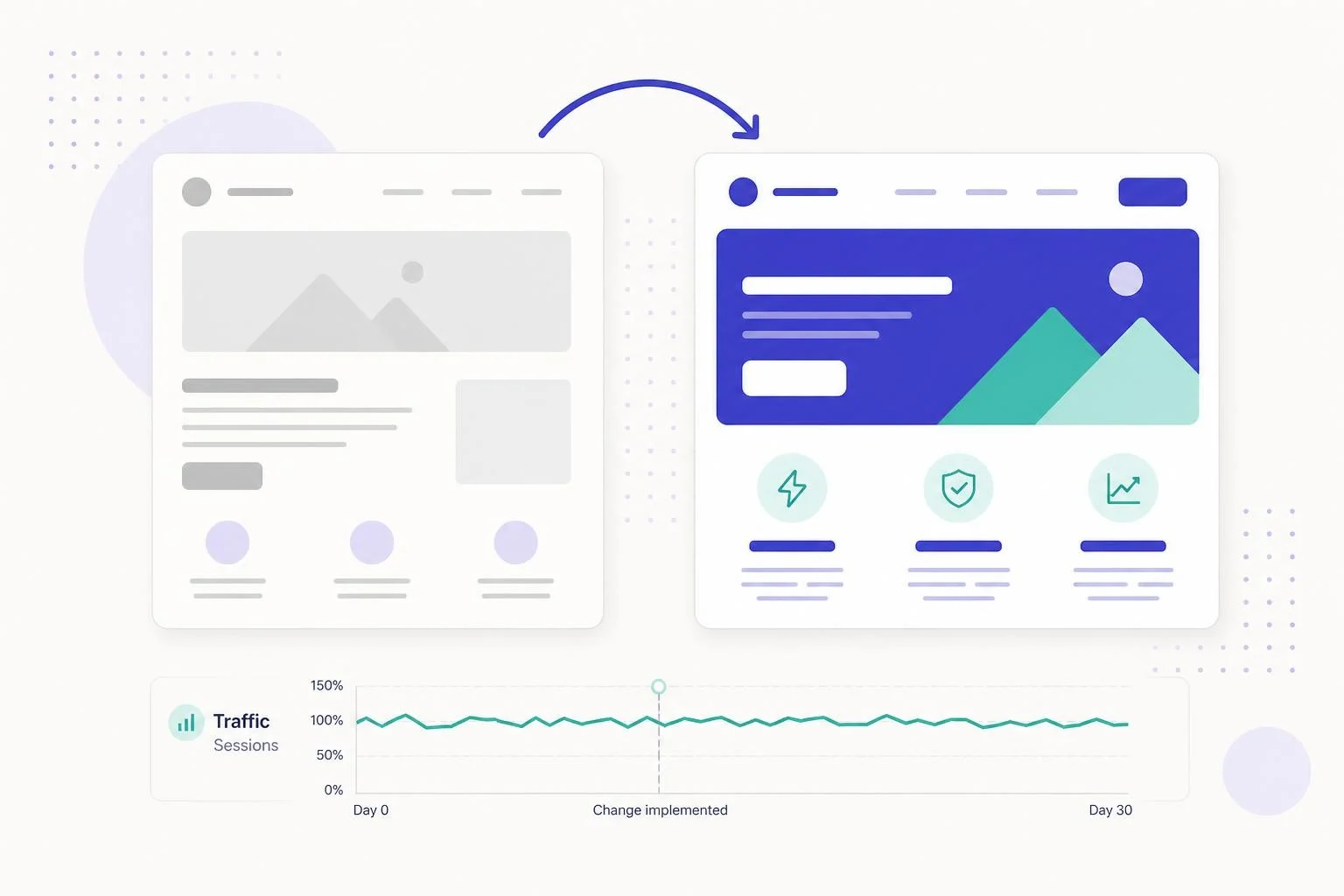
You've picked a new theme and you're nervous about hitting Activate on a site that already gets search traffic. Fair. Changing themes can affect SEO, in either direction. There's no penalty for switching, but the new theme rewrites the HTML of every page, and Google ranks what that HTML says and how fast it loads.
When rankings drop after a switch, the cause is almost always something specific and fixable: a slower page, a missing H1, lost internal links, or schema that disappeared. This guide covers what changes, a checklist for before and after, and what to watch for the first month.
For how a theme influences rankings in general, start with how your WordPress theme affects SEO. This post is about the switch itself.
The short answer
Yes, a theme change can move rankings, and Google has said so. John Mueller said in a 2021 Ask Googlebot video that changing your WordPress theme can impact rankings, depending on what changes along with it (Search Engine Roundtable's write-up). Cosmetic changes like colors don't matter much. Changes to layout, internal linking, and page structure can.
The things that actually move after a switch:
What changes | Typical symptom | How to catch it |
|---|---|---|
Page speed | Slower LCP or INP, mostly on mobile | PageSpeed Insights before and after |
Heading structure | Two H1s, or the post title is no longer the H1 | View source on your top posts |
Title tag output | Titles from your SEO plugin ignored or duplicated | Check the title tag in page source |
Internal links | Related posts, breadcrumbs, or footer links gone | Compare a post's links before and after |
Schema markup | Article or Breadcrumb markup missing or duplicated | Rich Results Test before and after |
Mobile content | Content or links hidden on mobile | Load the page on a phone |
URLs | 404s, if permalinks were changed at the same time | Don't change permalinks in the same release |
Control those and you can switch themes without a lasting drop.
What actually affects SEO when you switch
Page speed and Core Web Vitals
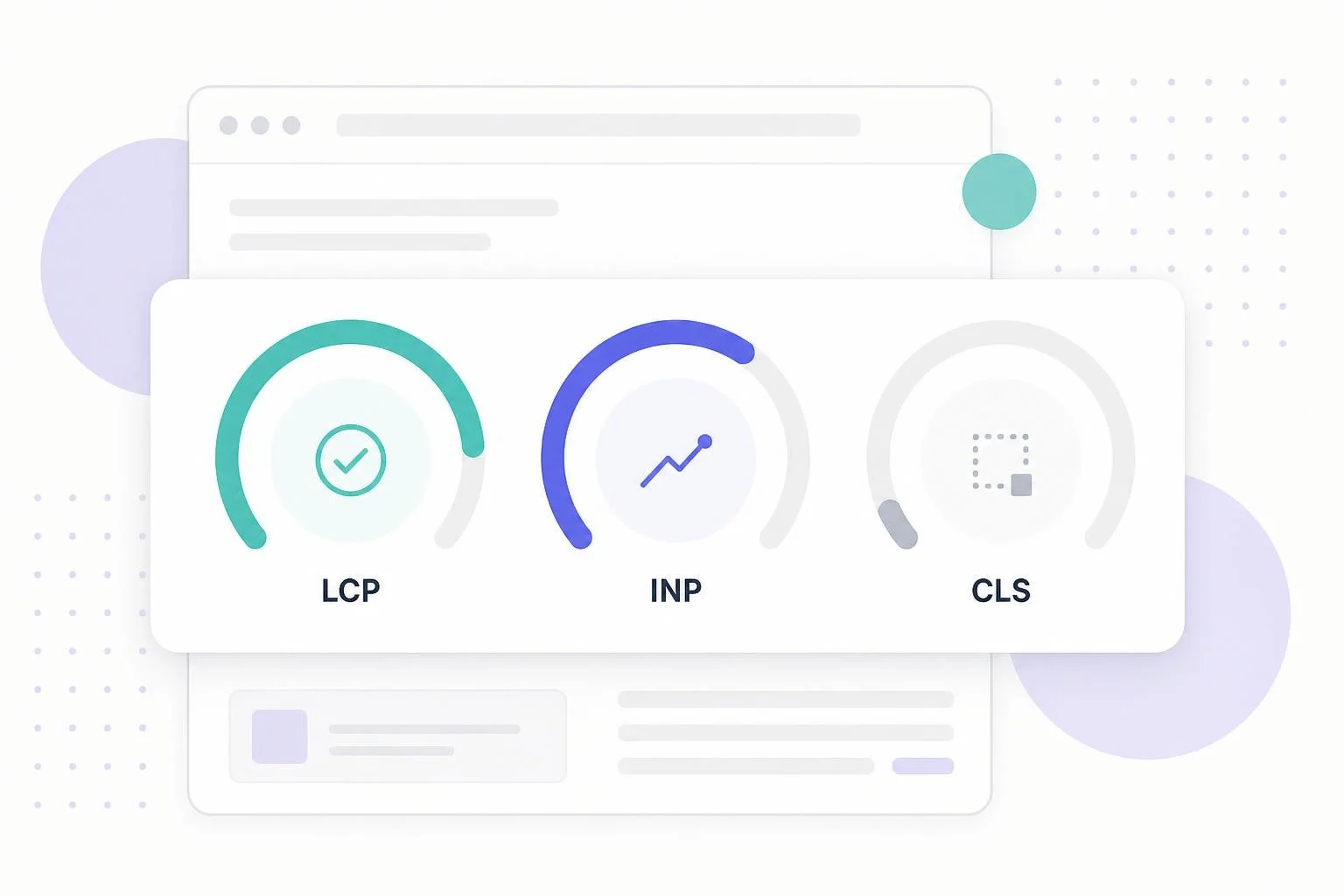
Speed is the biggest measurable difference between two themes. Google uses three Core Web Vitals: Largest Contentful Paint (2.5 seconds or less is good), Interaction to Next Paint (200 milliseconds or less), and Cumulative Layout Shift (0.1 or less). A theme that loads more CSS and JavaScript than your old one will usually hurt LCP and INP first.
Before switching, run your top 10 pages through PageSpeed Insights on mobile and save the lab results. Then run the same pages on your staging copy with the new theme. If LCP or Total Blocking Time got worse on most of them, the new theme isn't ready to go live. Our walkthrough on testing WordPress theme speed covers how to make that comparison fair. For cleanup after the switch, SmartWP has a practical guide to speeding up WordPress.
Heading structure and title tags
Every theme decides how your post title becomes an H1 and what else on the page gets a heading. If your old theme used the post title as the H1 and the new one also wraps the logo in an H1, Google sees a different structure on the same URL.
Open a few of your top posts on staging and check:
- One H1 per page, and it's the post title.
- H2 and H3 nesting matches your content, not your widgets.
- One title tag, set by your SEO plugin rather than hardcoded by the theme.
Internal links and navigation
Themes handle related posts, breadcrumbs, category lists, and footer menus differently. If your old theme added a related-posts block to every post and the new one doesn't, you've removed internal links across the whole site in one click.
Make a list of the links your current theme adds before you switch, then rebuild the important ones with blocks, widgets, or a plugin. Every important page should still be reachable within a few clicks of the homepage. The three-click rule post covers why that structure matters more than the exact number.
Schema markup
Some themes output schema.org microdata on their own. Others leave it entirely to your SEO plugin. If you move from a theme that handled schema to one that doesn't, and your plugin isn't configured for it, you lose structured data across every page. The reverse problem is duplicates: the new theme adds microdata on top of your plugin's JSON-LD.
Run one post and one category page through Google's Rich Results Test before and after. Our post on schema markup in WordPress themes explains how to decide whether the theme or the plugin should own it.
Theme-specific settings and shortcodes
This is where switches break things quietly. Customizer settings (logo, colors, header layout) are stored per theme and don't carry over. Shortcodes or custom post types that came with the old theme stop working, and the raw shortcode text shows up in your content. Menus and widgets may need reassigning, and moving from a classic theme to a block theme means rebuilding menus in the Navigation block.
Search your content for shortcodes the old theme provided before you switch, and plan replacements.
Permalinks and URLs
A theme switch on its own doesn't change URLs. The risk comes from bundling other changes into the same release, such as new permalink settings or a page builder that rebuilds pages under new addresses.
Never change themes and permalinks in the same deployment. Do one, let it settle for a couple of weeks, then do the other. If URLs must change, follow Google's guidance on site moves with URL changes and set up 301 redirects.
Before the switch
Run through this before you touch production:
- Take a full backup of files and database.
- Copy the site to staging and install the new theme there, not on live. Appearance > Themes > Live Preview is fine for a first look, but it isn't a test.
- Record mobile PageSpeed Insights results for your top 10 pages.
- Save Rich Results Test output for a post, a page, and a category archive.
- List the internal links your current theme adds (related posts, breadcrumbs, footer).
- Note custom CSS, child theme edits, and any theme shortcodes used in content.
- Confirm your SEO plugin settings are plugin-level, not theme-level. They usually are.
During the switch
- Activate the new theme and check that permalink settings are unchanged.
- Load your 10 highest-traffic pages and compare them against your notes.
- Confirm your XML sitemap still loads (our guide on finding your sitemap shows where it lives).
- Re-run the Rich Results Test on the same URLs as before.
- Clear every cache layer: plugin cache, host cache, and CDN.
What to watch for the first month
Search Console is your main tool here. Check it weekly for four to six weeks:
- Page indexing report: watch for a rise in "Crawled - currently not indexed" or new 404s.
- Core Web Vitals report: it uses a rolling 28-day window of real-user data, so it takes about a month to fully reflect the new theme. Use lab tests in the meantime.
- Performance report: compare clicks and average position to the same weeks before the switch. A drop spread evenly across the site points at something template-wide (speed, headings, schema). A drop on a few pages points at those pages' layouts.
- Click-through rate: if titles or descriptions render differently, CTR moves before positions do.
Use URL Inspection to request indexing for your most important pages, so Google sees the new templates sooner.
Picking a theme that's safe to switch to
If you're switching because your current theme is slow, start with our roundup of fast-loading WordPress themes, or top 10 SEO-friendly WordPress themes for a broader shortlist. GeneratePress, Kadence, Blocksy, and Astra are popular because they're lightweight and let SEO plugins handle titles and schema. For a head-to-head on the two most common choices, see GeneratePress vs Astra.
Whatever you pick, test it on staging with your real content. A theme demo with three posts tells you very little about how it handles yours.
So, will changing your theme hurt SEO?
Not if you treat it like any other production change. Google doesn't care which theme you use. It cares about speed, structure, and links, and a theme switch changes all three at once. Stage it, measure it, ship it, and monitor it for a month.
Once the new theme is stable, the next job is growing traffic on top of it. Our guide on increasing blog traffic picks up from there.